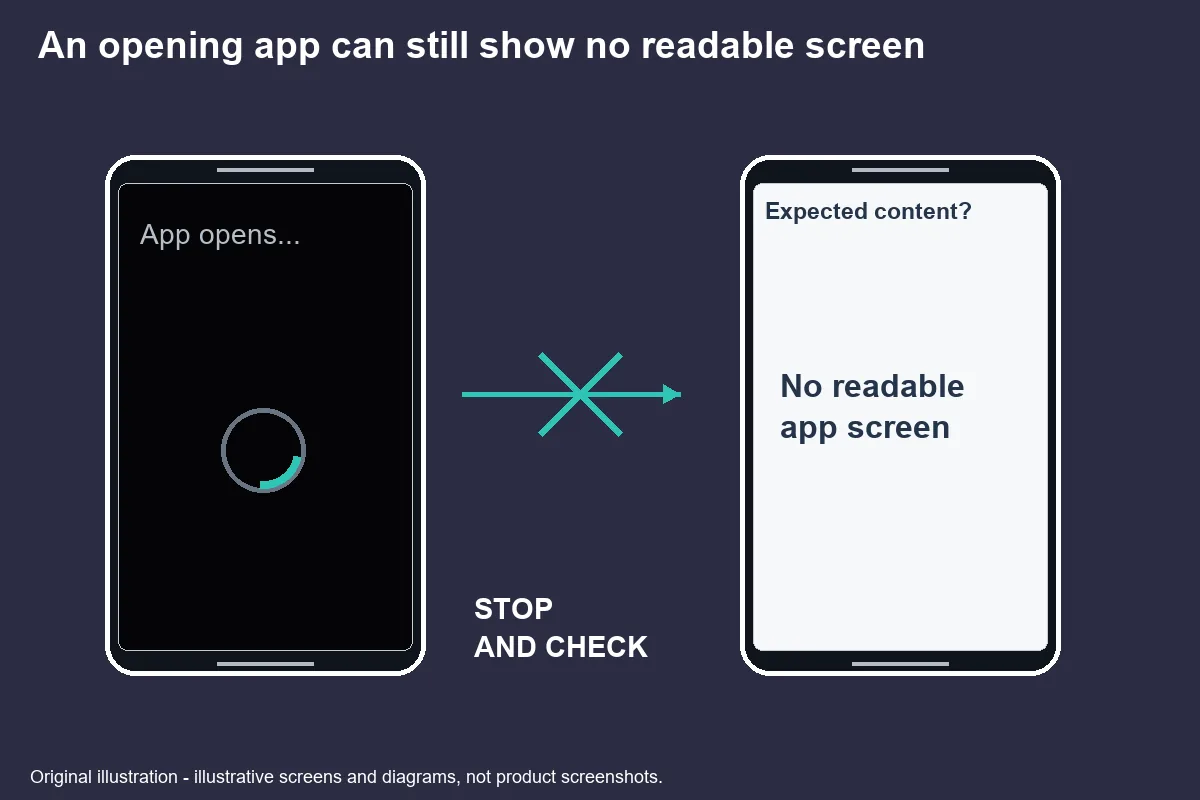
A game app's black screen is a symptom, not a diagnosis of malware or a reason to reinstall immediately. Start with reversible checks, use the instructions for your phone's operating system, and protect local records before deleting anything. Note when the screen becomes black so the developer can distinguish launch failure from a later loading problem.
Sources: Fix an installed Android app that isn't working - Google Play Help If an app on your iPhone or iPad stops responding, closes unexpectedly, or won’t open - Apple Support
Short answer
The first useful check is whether the phone still responds outside the affected app. If Settings and other applications work, the problem may be isolated; if the whole device is unresponsive, app-level instructions may not be the right starting point. Follow your device manufacturer's restart guidance rather than repeatedly pressing an unfamiliar game control.
Record what happened immediately before the screen changed. Was there a logo, a permission prompt, a connection message or an update? Those observations are more precise than saying that the game is broken. They also avoid assuming a cause from the final black image.
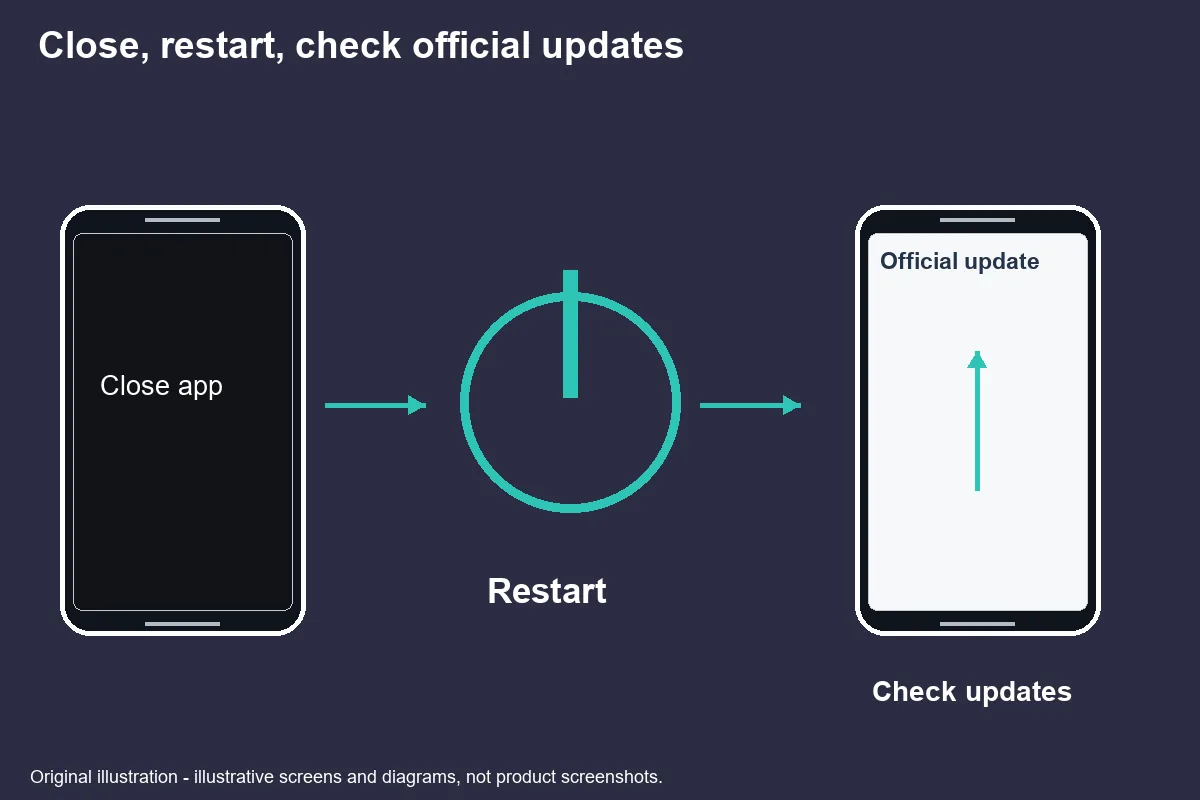
Google and Apple both provide a sequence involving closing or stopping an app, restarting and checking updates. Neither source promises that the sequence identifies every cause. This article combines the decision points while keeping Android and iPhone procedures separate.
Android checks
On Android, start with stopping the affected app and checking official updates before an action that removes its data. Google's app troubleshooting guide explains that settings vary by phone. Use the app information screen for the correct application and read the current options rather than following a different manufacturer's picture.
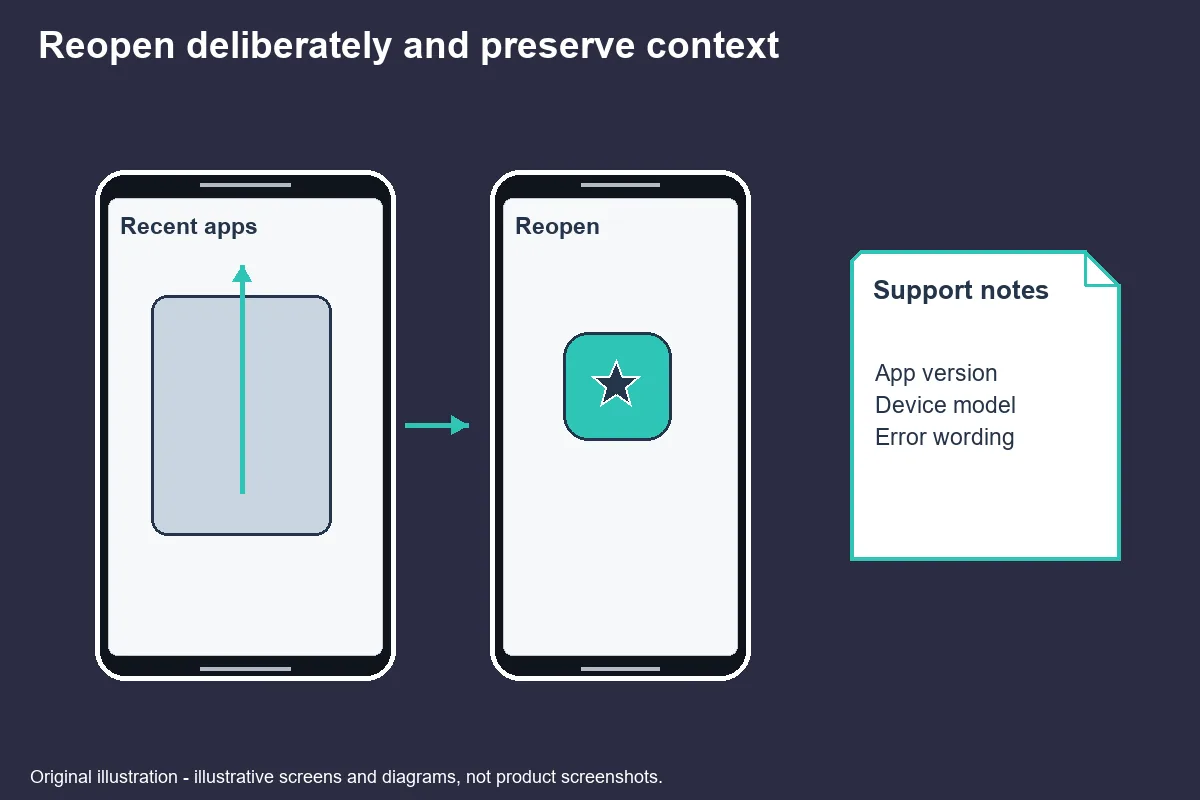
A force stop is not the same command as Clear storage. If the app reopens, record whether it reaches the same stage. Next consider restarting the handset and checking Android and app updates through recognised settings and the official store. Preserve the order of changes so that you can describe what happened after each one.
Clearing cache can be a later diagnostic step, but cached information and saved app data are different. Do not select a destructive neighbouring button simply because it sounds more thorough. If you cannot determine what would be removed, stop and ask the developer before proceeding.
Keep security checks separate from performance troubleshooting. Google Play Protect can inspect apps and show warnings about potentially harmful software. A clean warning history is not proof that an app's service claims are true, and a black screen alone is not proof that a security threat was found.
Original explanatory illustration · not a product screenshot. iPhone checks
On iPhone, Apple's recommended order starts with closing and reopening the app, then restarting and checking updates. Follow the procedure suitable for the device rather than an Android force-stop menu. If an app update is unavailable, Apple's instructions also direct users to check the device software.
Before deleting an app, read the warning that local data may be lost. A game account and the files stored on the phone are not necessarily the same thing. Knowing a login does not establish that every setting or record is backed up. Verify the developer's recovery explanation if those records matter to you.
Do not install a profile, remote-control tool or unrelated package in response to an unsolicited message offering a black-screen fix. Such a request introduces a new trust decision; it is not part of Apple's basic app troubleshooting sequence. You can stop without accepting a workaround from a stranger.
When reporting the result, distinguish “app closes after reopening” from “app stays open with a black view”. The two descriptions may lead to different questions from support. Include whether the phone's navigation remains responsive, without sending a video that exposes notifications or account details.
Original explanatory illustration · not a product screenshot. Browser-game alternative from the official source
A browser alternative should be considered only if the exact publisher or operator documents one. This article does not supply a new destination, assume that every game has a web version, or treat a search advertisement as an official route. Availability remains product-specific.
If a recognised service publishes a browser option, check its own instructions for supported browsers and data handling. The fact that a browser opens does not show that progress, local settings or account state will transfer from an app. Ask about the specific record you need to preserve rather than expecting identical behaviour.
Do not move from a failing app to a similarly named site just because its address looks shorter. That would change the service under investigation. Keep the trusted source and the software route as separate notes so that a developer can understand which environment failed.
An alternative is not required to finish this checklist. If no official route can be confirmed, mark it not yet verified and continue with the support record. Inventing a browser address would be more harmful than leaving that option unavailable.
What to record before contacting support
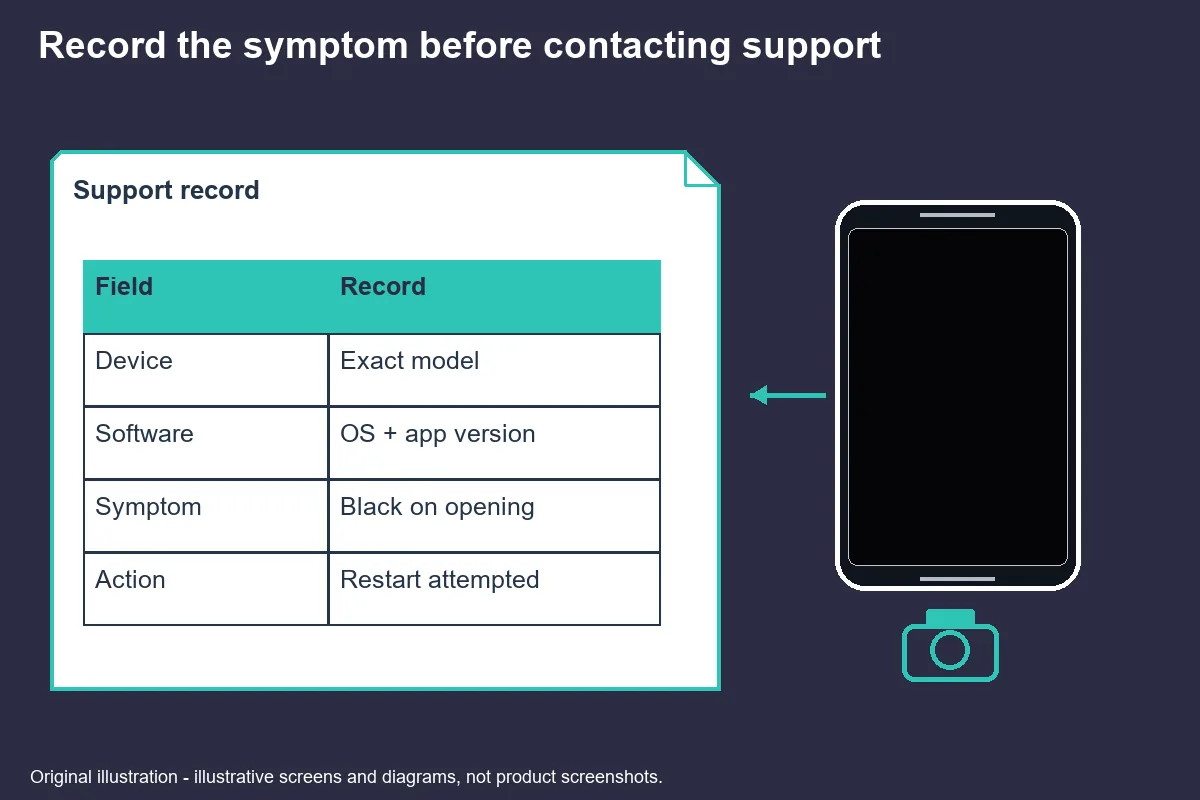
A concise technical record helps support investigate without giving away account secrets. Include device model, operating-system version, app version, approximate error time and the stage where the screen changes. Add the official download route you used, but omit tokens or personal query parameters from a copied link.
List the reversible actions already attempted and their outcomes. “Restarted the phone; the logo appeared, then the screen went black” is more informative than “tried everything”. Avoid repeating a failed action many times unless an official instruction explains why that repetition is useful.
State whether other apps and ordinary browsing still work. If the issue affects several downloads or applications, it may need platform or device support rather than only the game's help desk. Google specifically distinguishes a single-app problem from broader failures when directing users to a developer.
Redact notifications and personal identifiers from any supporting image. A screenshot should show the problem, not your wallet balance, messages or recovery details. If the only view available is black, a carefully written sequence may provide more evidence than that screenshot.
Stop troubleshooting when the next proposal requires unverified software, payment to unlock a repair, or data deletion you do not understand. The goal is to identify the failure safely. There is no need to turn a small technical problem into a new account or privacy risk.
Original explanatory illustration · not a product screenshot. - Evidence for this section
- Fix an installed Android app that isn't working - Google Play Help
Reference desk
- Fix an installed Android app that isn't working - Google Play Help
- URL subject and content checked; not operator endorsement — Retrieved 2026-10-31
- If an app on your iPhone or iPad stops responding, closes unexpectedly, or won’t open - Apple Support
- URL subject and content checked; not operator endorsement — Retrieved 2026-10-31
- Use Google Play Protect to help keep your apps safe & your data private - Google Play Help
- URL subject and content checked; not operator endorsement — Retrieved 2026-10-31
待核實 / Unverified details
- Operator-specific availability, account outcomes and licence status are not certified by this guide.
Questions and answers
Is a black screen a virus?
A black screen alone does not establish a cause. It may be an app failure, but that observation is not a security diagnosis. Keep Play Protect enabled and treat unusual permissions or unfamiliar downloads as separate concerns.
Fix an installed Android app that isn't working - Google Play Help If an app on your iPhone or iPad stops responding, closes unexpectedly, or won’t open - Apple Support Use Google Play Protect to help keep your apps safe & your data private - Google Play Help
Will reinstalling lose data?
It can remove locally stored app data. Before deletion, check how the developer stores records and whether you have a working recovery route. Do not promise that signing in again will restore everything.
Fix an installed Android app that isn't working - Google Play Help If an app on your iPhone or iPad stops responding, closes unexpectedly, or won’t open - Apple Support Use Google Play Protect to help keep your apps safe & your data private - Google Play Help
Does low-end hardware cause it?
Hardware requirements can matter, but the screen alone does not prove insufficient hardware. Check the exact app’s official requirements and record your device model. This article includes no measured device benchmark.
Fix an installed Android app that isn't working - Google Play Help If an app on your iPhone or iPad stops responding, closes unexpectedly, or won’t open - Apple Support Use Google Play Protect to help keep your apps safe & your data private - Google Play Help
Who do I contact?
For a problem isolated to one app, use the developer’s independently verified support listing. For broader store or device failures, follow the official platform help route. Do not send passwords or security codes in the initial record.
Fix an installed Android app that isn't working - Google Play Help If an app on your iPhone or iPad stops responding, closes unexpectedly, or won’t open - Apple Support Use Google Play Protect to help keep your apps safe & your data private - Google Play Help