A storage error calls for a check of internal free space before you change an installer or delete app data. Remove files you recognise, distinguish cache from saved storage, and retry through the same trusted download route. If the error continues, record the message rather than guessing that a smaller APK is a safe fix.
Sources: Free up storage on your Android device - Android Help Fix problems downloading apps with basic troubleshooting steps - Google Play Help
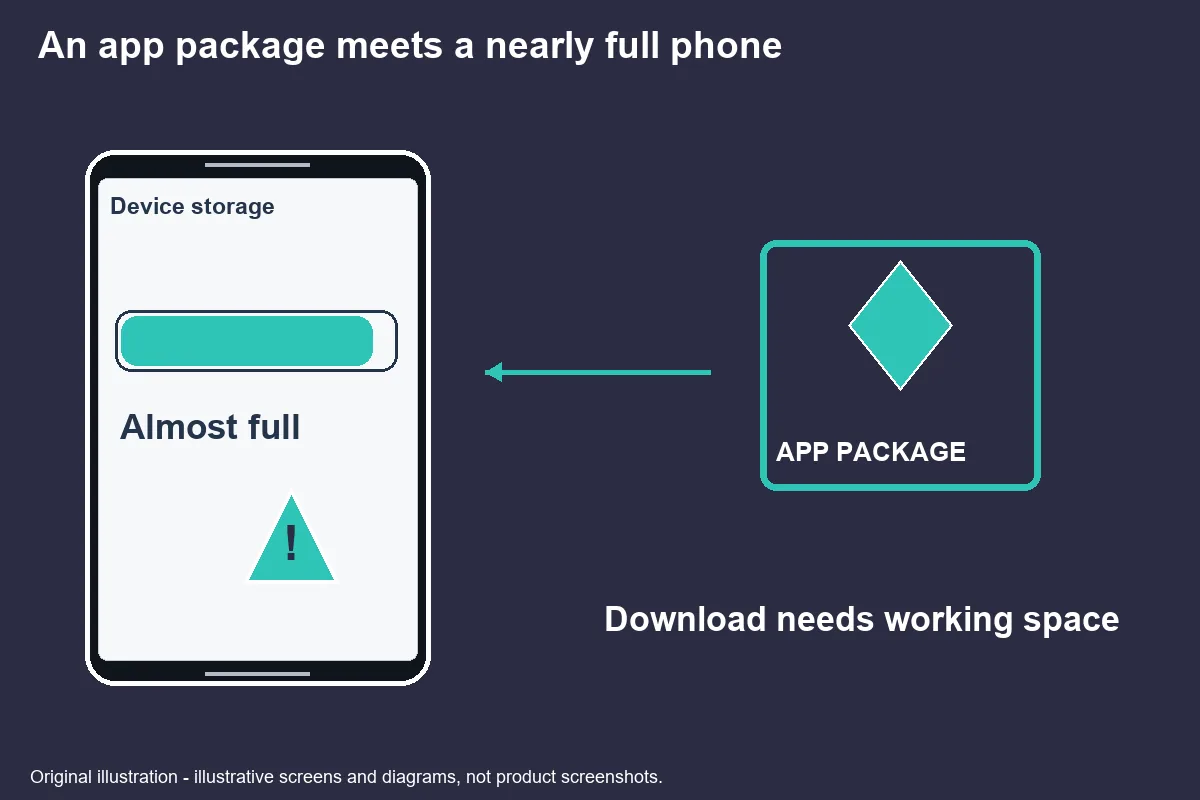
Why the message appears
An installation needs usable storage, and a download-size label alone does not diagnose the error. Google's Play troubleshooting guidance includes checking storage among the basic steps for download problems. The phone's actual warning is more useful than a number copied from a promotional page.
Read whether the message comes from Android, the store, or the app itself. Those are different contexts. A notice while downloading is not necessarily the same problem as a notice after the app starts. Write down the stage so that a later support request does not blur two separate failures.
Avoid a universal rule such as keeping twice the download size free. This guide has no verified formula for your app or phone. Required working space can depend on how software is delivered and managed. Record the facts that you can see: available space, requested download, message wording, and whether other official downloads also fail.
Check real free space
The storage settings page gives a better starting point than an estimate based on how many photos you remember saving. Google's Android instructions explain how to inspect and free storage, with the warning that settings can vary. Look for your phone's Storage section and read the capacity labels carefully.
Do not confuse device capacity with available capacity. A phone advertised with a large total can still have little room left. Similarly, a cloud account's free space is not the same as free storage on the handset. Keep those numbers in separate notes if you are considering moving files.
Review large categories rather than deleting unfamiliar folders. A downloaded film you no longer need is easier to identify than an app's internal directory. Before removing media, confirm where a backup exists and open a sample file from that backup. A thumbnail or an unfinished upload is not reliable proof that the original is safely stored elsewhere.
The storage illustration here is a diagram, not a screenshot from a test device. Its category labels show what to inspect, without inventing readings for a phone we have not used. No amount displayed in the article is presented as your available space.
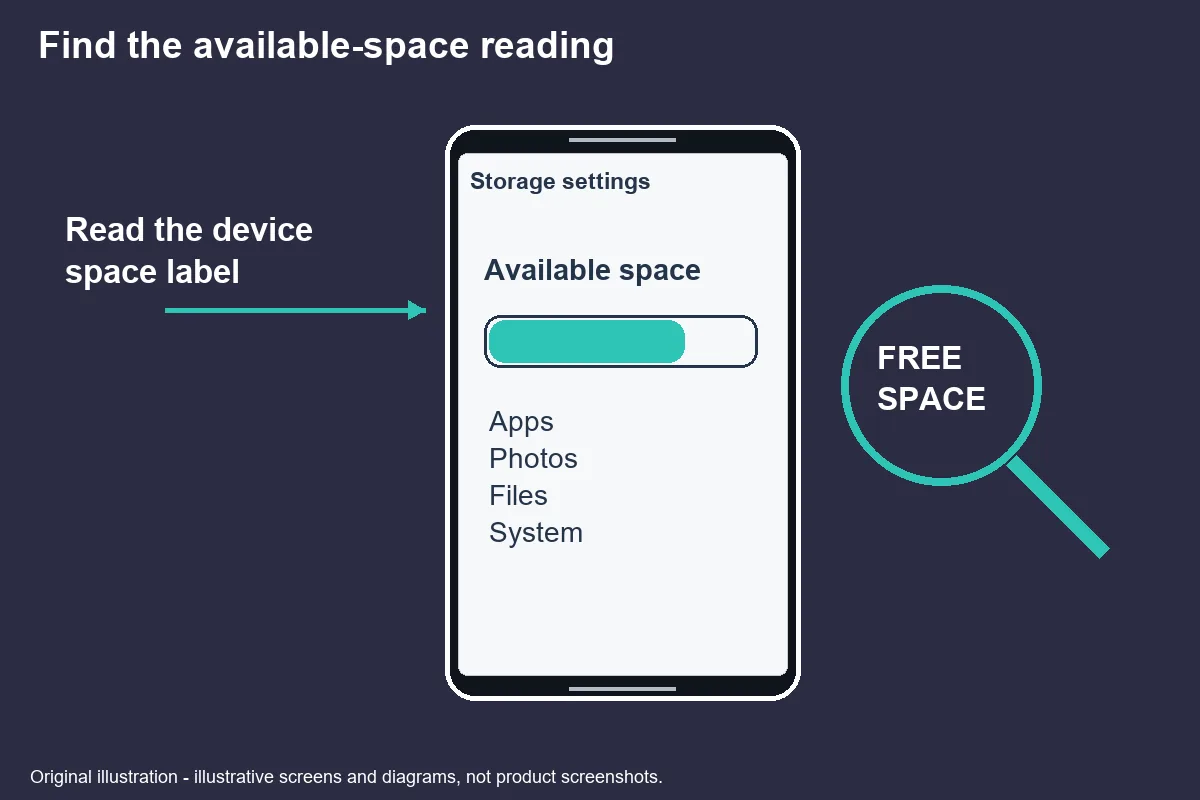
Original explanatory illustration · not a product screenshot. - Evidence for this section
- Free up storage on your Android device - Android Help
Safe clean-up order
Start with recognised, replaceable files before considering actions that erase app state. Google's storage guide separates file removal, unused apps, cache and app storage. That distinction supports a cautious order without promising that a particular deletion will solve the installation.
First inspect Downloads and media you deliberately saved. Delete only items whose purpose you understand. A document containing a recovery instruction may be more important than its size suggests. If a file belongs to work, family or a financial account, verify its backup before removing the local copy.
Second review unused applications. Before uninstalling, establish whether their records are synced or local and whether you can regain access. A remembered account name is not proof that recovery will succeed. Do not uninstall an authenticator or other access tool casually while cleaning space for an unrelated game.
Third consider selected cached files. Read the exact action on the app information screen. Clear cache and Clear storage are not interchangeable labels. Google describes cached data as temporary and explains that clearing app storage deletes app data. That is why this article does not use the instruction “clear everything”.
After one meaningful change, check storage again and retry only through the recognised official route. This keeps the record understandable. Repeated downloads, copies of an installer, and multiple failed attempts may make the storage picture harder to interpret rather than clearer.
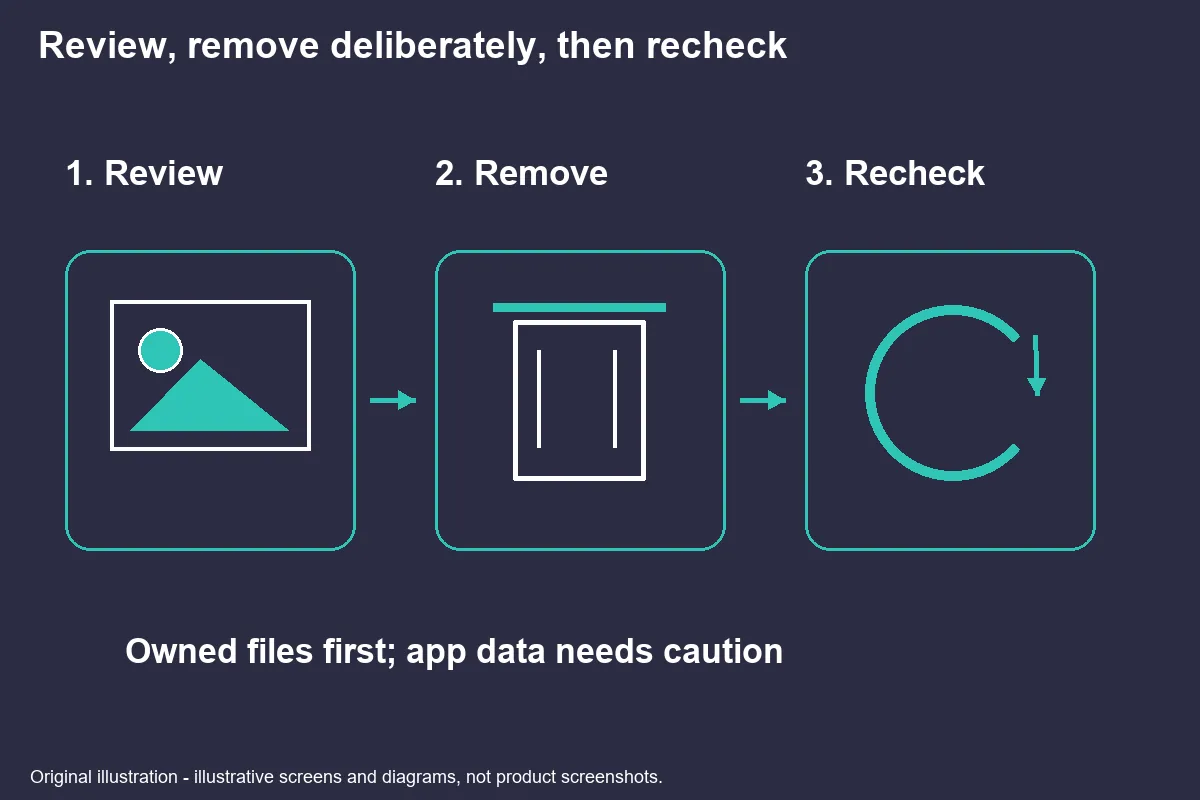
Original explanatory illustration · not a product screenshot. - Evidence for this section
- Free up storage on your Android device - Android Help
Install-size vs free-space gap
A gap between a download label and a storage warning should be investigated, not converted into a guessed ratio. Compare the same units and note where each figure appears. One screen might describe a file, another the installed application, and another all data associated with it.
Google Play's basic troubleshooting also covers connection, device restarts and software checks. A storage-looking failure can coexist with other problems. If space has been freed and the warning changes, preserve the new wording instead of continuing the same clean-up indefinitely.
Separate cache from downloaded resources acquired after installation. The store's initial description may not answer every question about later data. Ask the developer for a current requirement if its official documentation does not specify one. Do not fill the missing number with a forum estimate and publish it as a tested threshold.
For support, a useful comparison is “before cleaning” and “after cleaning”, together with the same installation stage. You do not need to provide a gallery of private files to demonstrate the problem. A text record of the relevant capacity label and error is usually a more controlled starting point.
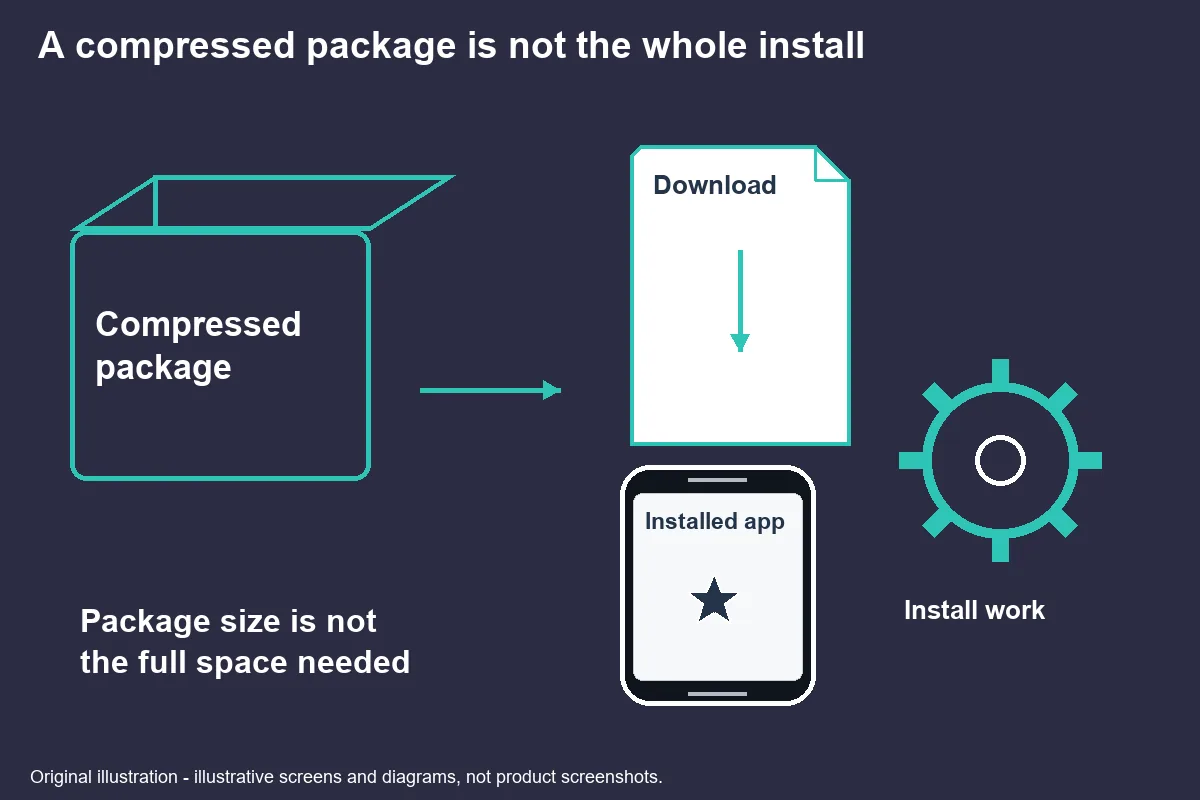
Original explanatory illustration · not a product screenshot. - Evidence for this section
- Fix problems downloading apps with basic troubleshooting steps - Google Play Help
When to stop and not sideload
Stop the clean-up if the next step would erase information you cannot recover. An installation is not worth losing an account's only recovery record or an important local document. Device maintenance can wait while you verify what an action removes.
Do not accept an unofficial “lite” package as the automatic next step. Smaller size does not verify a publisher, version or integrity. A stranger's download link also changes the subject: you would now be investigating a new package rather than fixing the original store installation.
If multiple apps fail, follow the official store troubleshooting route. If only this app fails after basic checks, contact its developer using an independently recognised listing. Google's app guidance distinguishes these situations and warns about local data loss when uninstalling.
End with a specific unresolved question: whether the required internal space is documented, whether the warning persists after safe cleaning, or whether installation fails at another stage. That makes the next action proportionate. It also prevents an open-ended cycle of deleting more files without a reason.
- Evidence for this section
- Fix an installed Android app that isn't working - Google Play Help
Reference desk
- Free up storage on your Android device - Android Help
- URL subject and content checked; not operator endorsement — Retrieved 2026-10-31
- Fix problems downloading apps with basic troubleshooting steps - Google Play Help
- URL subject and content checked; not operator endorsement — Retrieved 2026-10-31
- Fix an installed Android app that isn't working - Google Play Help
- URL subject and content checked; not operator endorsement — Retrieved 2026-10-31
待核實 / Unverified details
- Operator-specific availability, account outcomes and licence status are not certified by this guide.
Questions and answers
Does clearing cache delete my account?
Google distinguishes temporary cache from app storage. Clearing cache is not the same operation as deleting an account, but app-specific recovery still matters. Read the exact button label and do not replace it with Clear storage.
Free up storage on your Android device - Android Help Fix problems downloading apps with basic troubleshooting steps - Google Play Help Fix an installed Android app that isn't working - Google Play Help
Why does installation fail with space left?
The displayed download size is not a universal statement of the space an installation needs. Other download problems may also be involved. Record the available space and exact error rather than inventing a required multiplier.
Free up storage on your Android device - Android Help Fix problems downloading apps with basic troubleshooting steps - Google Play Help Fix an installed Android app that isn't working - Google Play Help
Is an SD card enough?
An SD card does not automatically satisfy an app’s need for internal storage. Options vary by device and app. Check your phone’s instructions before moving data, and verify that moved files can be opened.
Free up storage on your Android device - Android Help Fix problems downloading apps with basic troubleshooting steps - Google Play Help Fix an installed Android app that isn't working - Google Play Help
Is a lite APK safe?
A smaller file is not evidence of an authentic publisher or safe contents. Do not use a chat attachment or an unofficial copy to bypass a storage error. Resolve the storage or official download problem instead.
Free up storage on your Android device - Android Help Fix problems downloading apps with basic troubleshooting steps - Google Play Help Fix an installed Android app that isn't working - Google Play Help