An Android game permission should match a function you understand, and you can refuse access that the app has not justified. Start with the permission name and the task that caused the request, then choose the narrowest suitable option your phone offers. This guide explains the decision and the settings, not whether a particular gaming service is authorised.
Sources: Change app permissions on your Android phone - Android Help Permissions on Android | Privacy | Android Developers
Direct answer
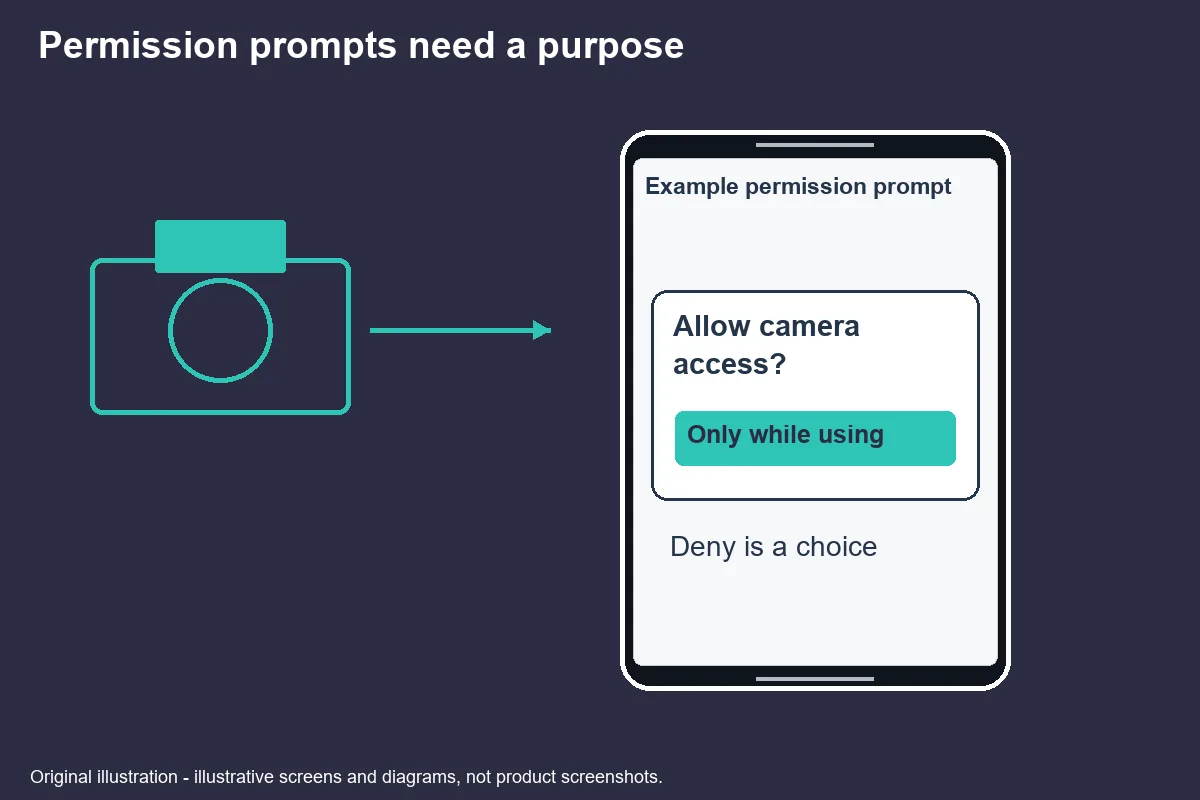
Allow a permission only when its purpose fits a feature you deliberately chose to use. A camera request after selecting a photo function is a different situation from a camera request appearing without explanation at launch. Neither example proves that the app is safe; the comparison simply makes the request easier to assess.
Android permissions control access to protected information and actions. Android Developers distinguishes permission categories and explains that certain access requires a runtime request. The technical category matters, but you do not need to know programming terminology to ask what information will become available. Read the prompt before dismissing it.
Treat the prompt as a choice rather than a test you must pass. Do not keep pressing Allow just to remove interruptions. If you cannot connect a request with a visible task, stop that task and inspect the app's explanation. A missing explanation is a reason to withhold access, not evidence that you should try a more powerful setting.
Permission types in plain terms
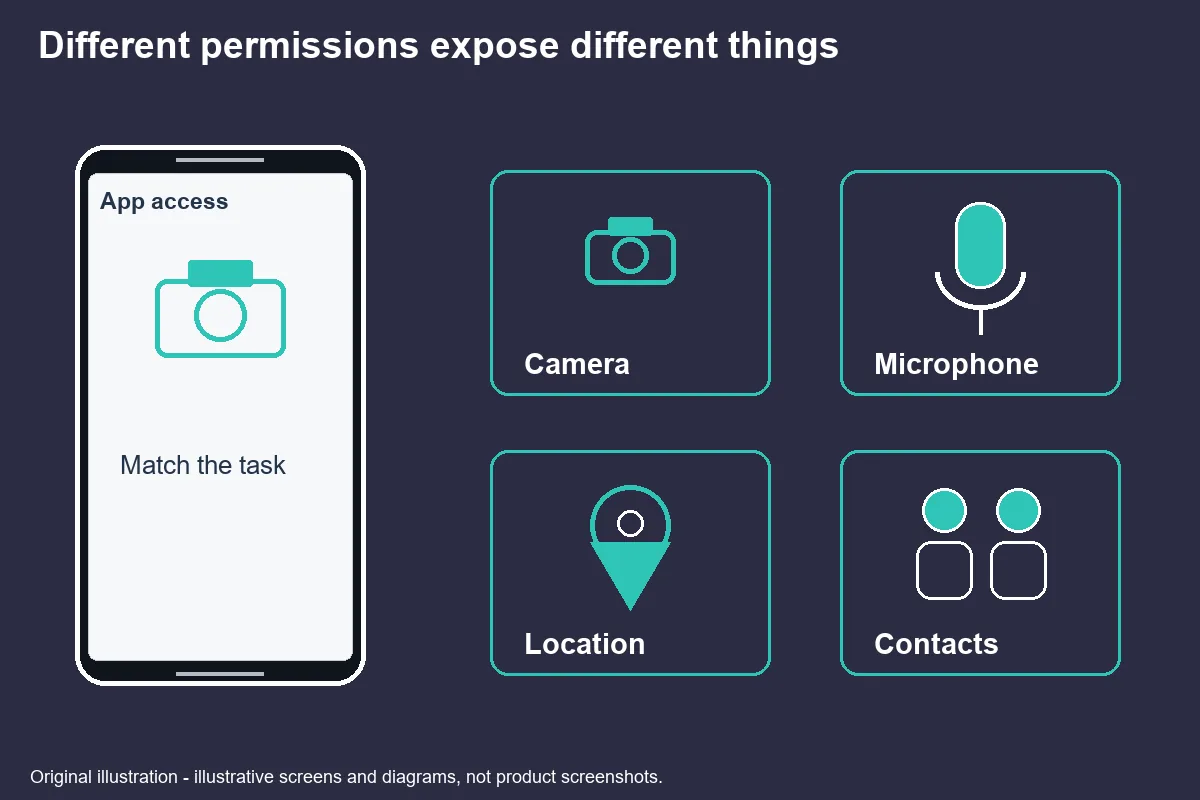
Permission names describe different kinds of access, so one decision should not automatically approve the next request. Google's Android Help lists common permissions and the information they can expose. Your exact choices and wording may differ with the Android release and manufacturer.
Location
Location access concerns where the device is, with options that may distinguish approximate and precise location or foreground and background use. Ask whether the feature needs a rough area or a more exact position. Do not assume that a country's availability rule gives every game a reason to follow you in the background. The service should explain the specific requirement.
Contacts/SMS
Contacts and SMS involve other people's details and communications, not merely a game's graphics. A social invitation feature and a message-reading request are separate functions. If a permission explanation mentions verification, check whether it describes a limited action or broad access. Never send a security code to a person to compensate for denying an app permission.
Accessibility
Accessibility services are not a generic fix for installation or login errors. These services can support users with genuine access needs, but an unfamiliar service may gain capabilities that deserve separate scrutiny. Review the service's own description and publisher. An instruction from an unverified chat contact is not a sufficient reason to enable it.
Original explanatory illustration · not a product screenshot. - Evidence for this section
- Change app permissions on your Android phone - Android Help
Reviewing permissions step by step
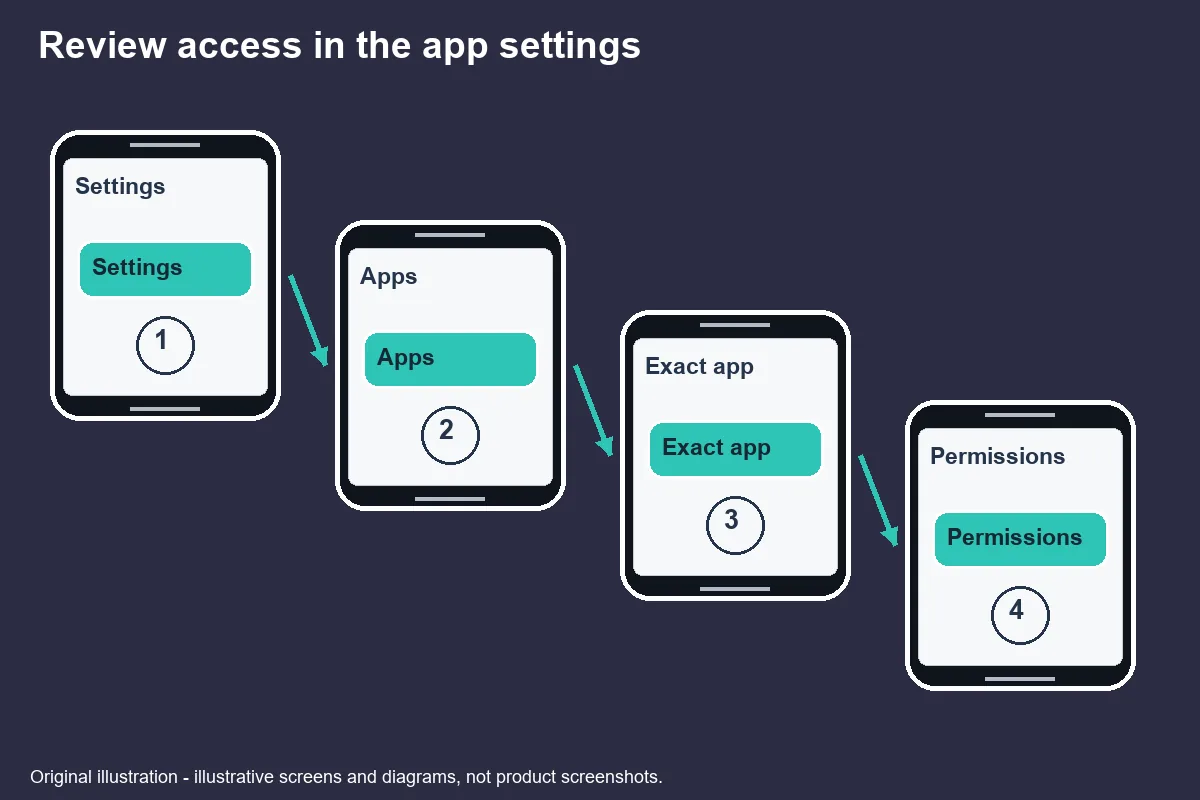
The app's permission page is the place to review access already granted. Google's general route is Settings, Apps, the selected app, then Permissions; some phones use additional menus. Search Settings if the route differs rather than following a random screenshot with unfamiliar buttons.
First confirm that you selected the intended app. Similar names can make a list confusing, particularly after several installations. Check the app information screen and publisher context before changing anything. This prevents a permission change to an unrelated wallet, browser, or system component.
Next read allowed and denied entries separately. Record a permission's current state before changing it, using a private note rather than uploading screenshots containing personal information. Where the phone offers a narrower choice, compare it with the task. You should not choose persistent access merely because it appears above another option.
Finally return to the specific feature you were checking. If it no longer works, note which function changed. That is different from concluding that the entire game requires every permission. Change one setting at a time so that you can understand the result without guessing which alteration mattered.
Original explanatory illustration · not a product screenshot. - Evidence for this section
- Change app permissions on your Android phone - Android Help
Red flags in a permission request
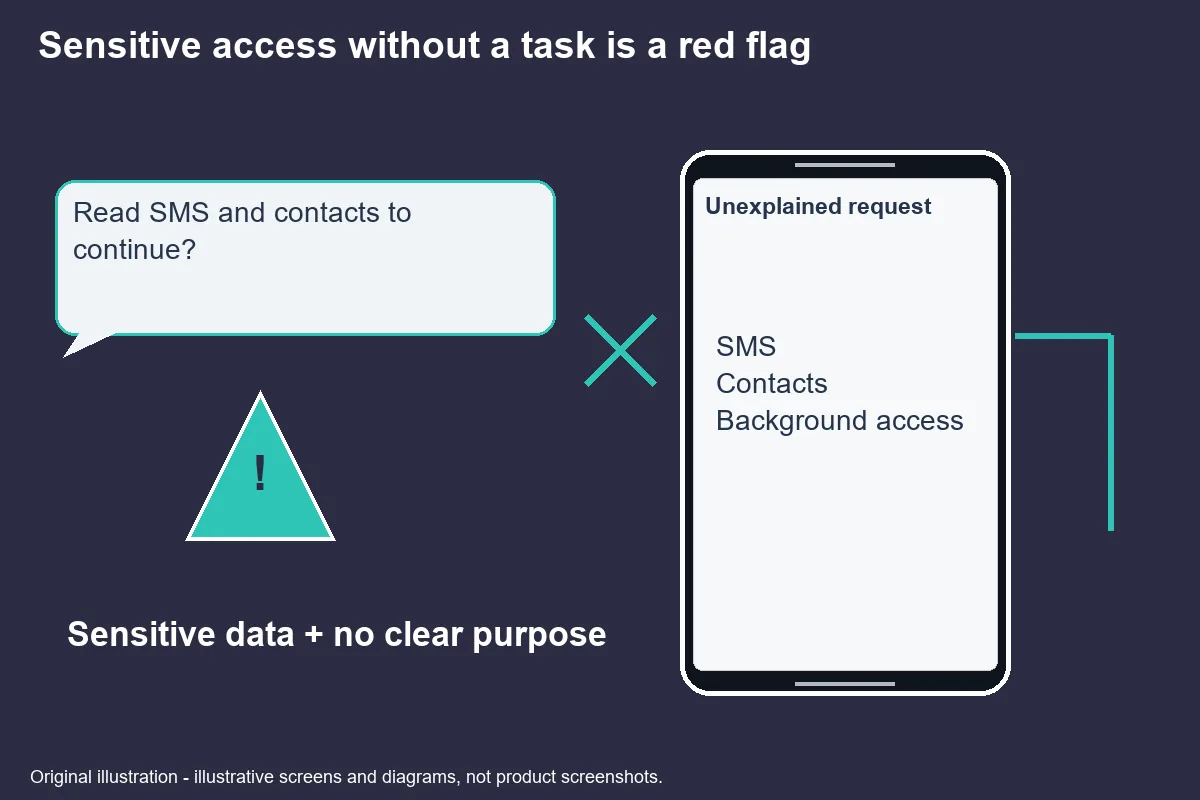
A request deserves extra attention when its explanation and the information it seeks do not match. For example, a decorative feature does not by itself explain why the app needs contacts. This is a purpose check, not a claim that one permission is always malicious or another always harmless.
Pressure also matters. A person who insists that you enable broad access before asking questions is trying to replace your judgement with urgency. Do not install a second tool or enable a service merely because a message says that a support deadline is approaching. Verify the request through a channel you independently recognise.
Google Play Protect adds another check by examining apps for potentially harmful behaviour and displaying relevant warnings. Keep those warnings separate from an operator's marketing. A scan cannot establish that a gaming brand has a licence, that a withdrawal promise is true, or that a particular data request is proportionate.
The permission illustrations accompanying this article is an editorial questioning aid. It groups requests by how much explanation they need, not by a measured probability of abuse. We did not run a penetration test, score an app, or observe a breach. Any app-specific finding would need its own evidence.
Original explanatory illustration · not a product screenshot. - Evidence for this section
- Use Google Play Protect to help keep your apps safe & your data private - Google Play Help
Removing access later
You can revisit a permission after allowing it, so an earlier decision does not have to remain permanent. Use the same app permission page to deny or narrow access. Read any warning describing a feature that will stop working, and distinguish that functional consequence from a security assessment.
Review access when you stop using an app or when its purpose changes. A feature used once may no longer need ongoing access. Android may also manage unused apps automatically, depending on the version and settings, but a manual review remains useful when you want to know the current state.
If you suspect an account has already been exposed, changing a permission is only one part of the response. It does not reverse an earlier disclosure or automatically close an active session elsewhere. Use the relevant account provider's independent security process. Do not hand a password or code to someone offering to perform the review for you.
Finish with a brief record: app name, permission reviewed, chosen setting, and the feature affected. Keep the note free of account secrets. That small record makes a later decision easier to revisit and gives legitimate support a precise question, instead of an invitation to request unrestricted access.
- Evidence for this section
- Change app permissions on your Android phone - Android Help
Reference desk
- Change app permissions on your Android phone - Android Help
- URL subject and content checked; not operator endorsement — Retrieved 2026-10-31
- Permissions on Android | Privacy | Android Developers
- URL subject and content checked; not operator endorsement — Retrieved 2026-10-31
- Use Google Play Protect to help keep your apps safe & your data private - Google Play Help
- URL subject and content checked; not operator endorsement — Retrieved 2026-10-31
待核實 / Unverified details
- Operator-specific availability, account outcomes and licence status are not certified by this guide.
Questions and answers
Why would a game ask for SMS?
The app must explain its specific purpose. Do not assume that an SMS request is necessary for ordinary gameplay or verification. A broad request to read messages deserves particular care because messages may contain security information.
Change app permissions on your Android phone - Android Help Permissions on Android | Privacy | Android Developers Use Google Play Protect to help keep your apps safe & your data private - Google Play Help
Is accessibility permission dangerous?
Accessibility tools can serve legitimate needs, but access must match a trusted, understood function. Do not enable an unfamiliar service because a chat contact says it is required. This guide does not certify any particular app.
Change app permissions on your Android phone - Android Help Permissions on Android | Privacy | Android Developers Use Google Play Protect to help keep your apps safe & your data private - Google Play Help
Can I deny and still play?
Some features may work while a permission-dependent function does not. The result depends on the app and Android version. Denial is a reasonable first choice when the stated purpose is unclear; you can review the setting later.
Change app permissions on your Android phone - Android Help Permissions on Android | Privacy | Android Developers Use Google Play Protect to help keep your apps safe & your data private - Google Play Help
What does Play Protect check?
Google describes checks for potentially harmful apps and related warnings. Play Protect is a security layer, not proof of a gaming operator’s authorisation, an app’s business claims, or the necessity of every permission.
Change app permissions on your Android phone - Android Help Permissions on Android | Privacy | Android Developers Use Google Play Protect to help keep your apps safe & your data private - Google Play Help